3 Submitter understand the approval
- PC
- Mobile
1.Understand Approval Submitter
In Approval, for members of Submit Approval, we uniformly call them submitters. Submitter can submit Approval on demand in Approval application (e.g. leave, business trip, reimbursement, etc.), and view and follow up the approval progress at any time during the Approval process.
2.Access to the approval application
Using Matrx Desktop, go to the Approval Center.
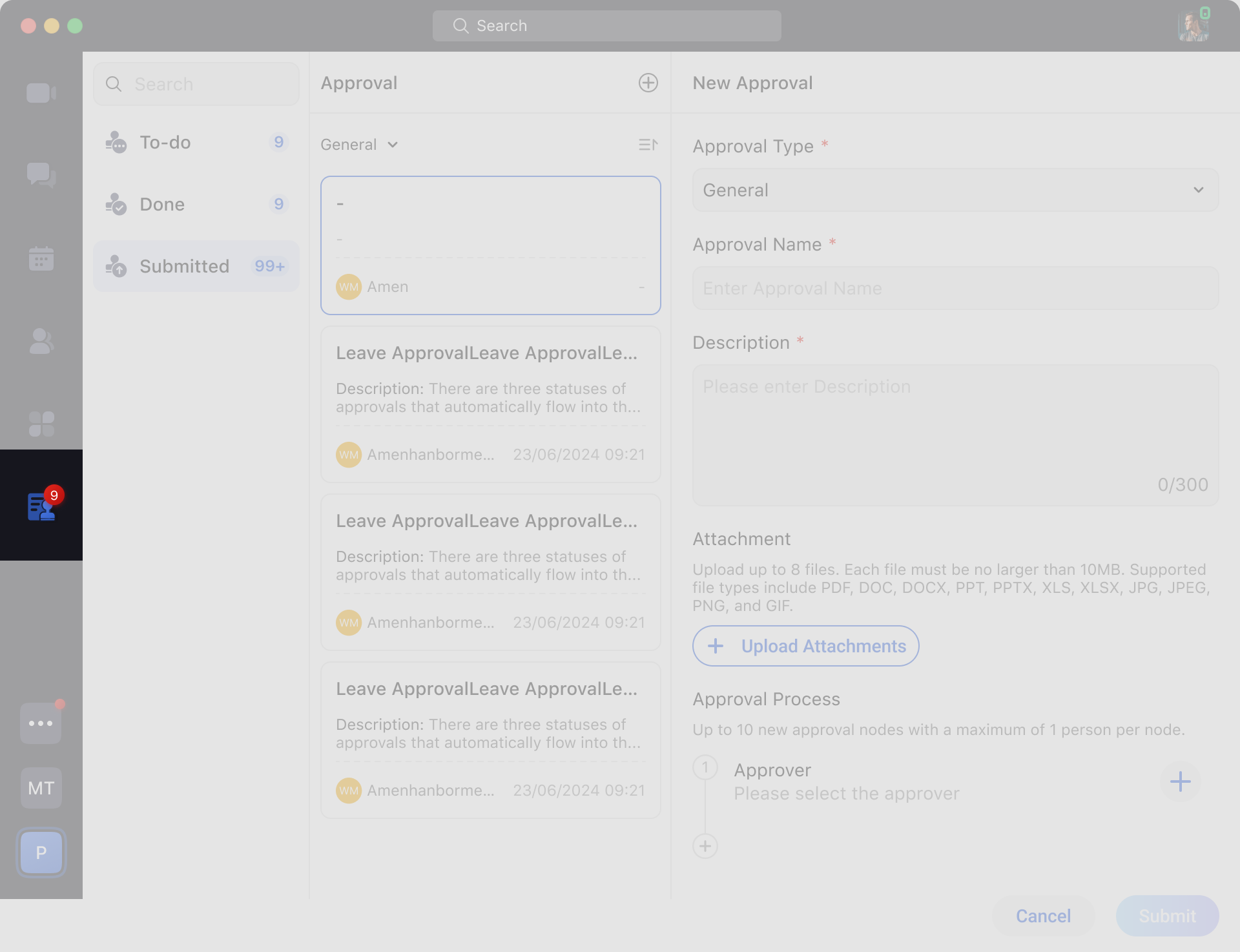 In the Approval application, you can do the following:
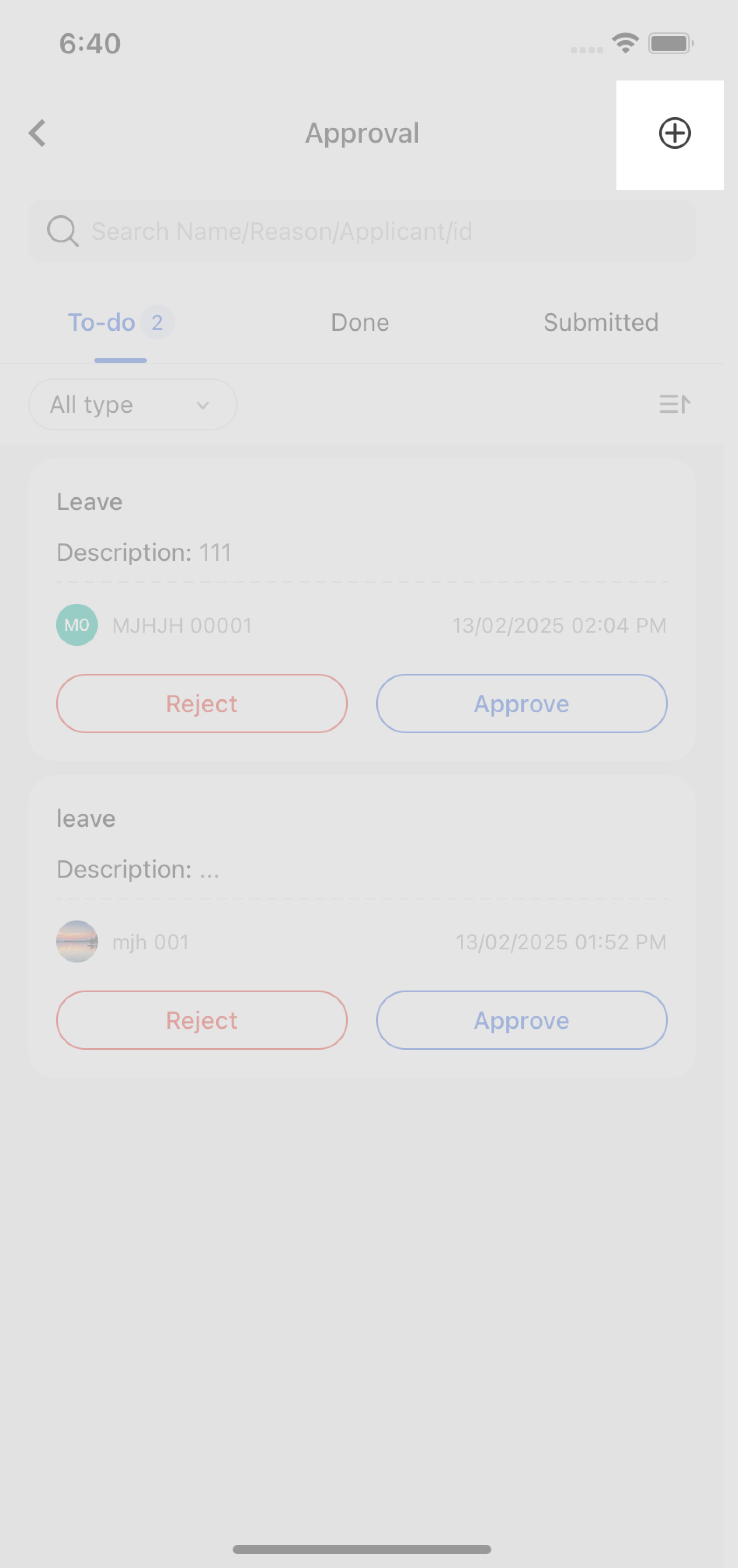
- New Approval: You can fill in the Approval content according to your needs.
- Approval Centre: You can view and follow up the Approval applications you have submitted, as well as forward and withdraw them.
3.Complete the Approval process in two steps
3.1 Submit an Approval
Click New Approval, fill out the form as required and click Submit.
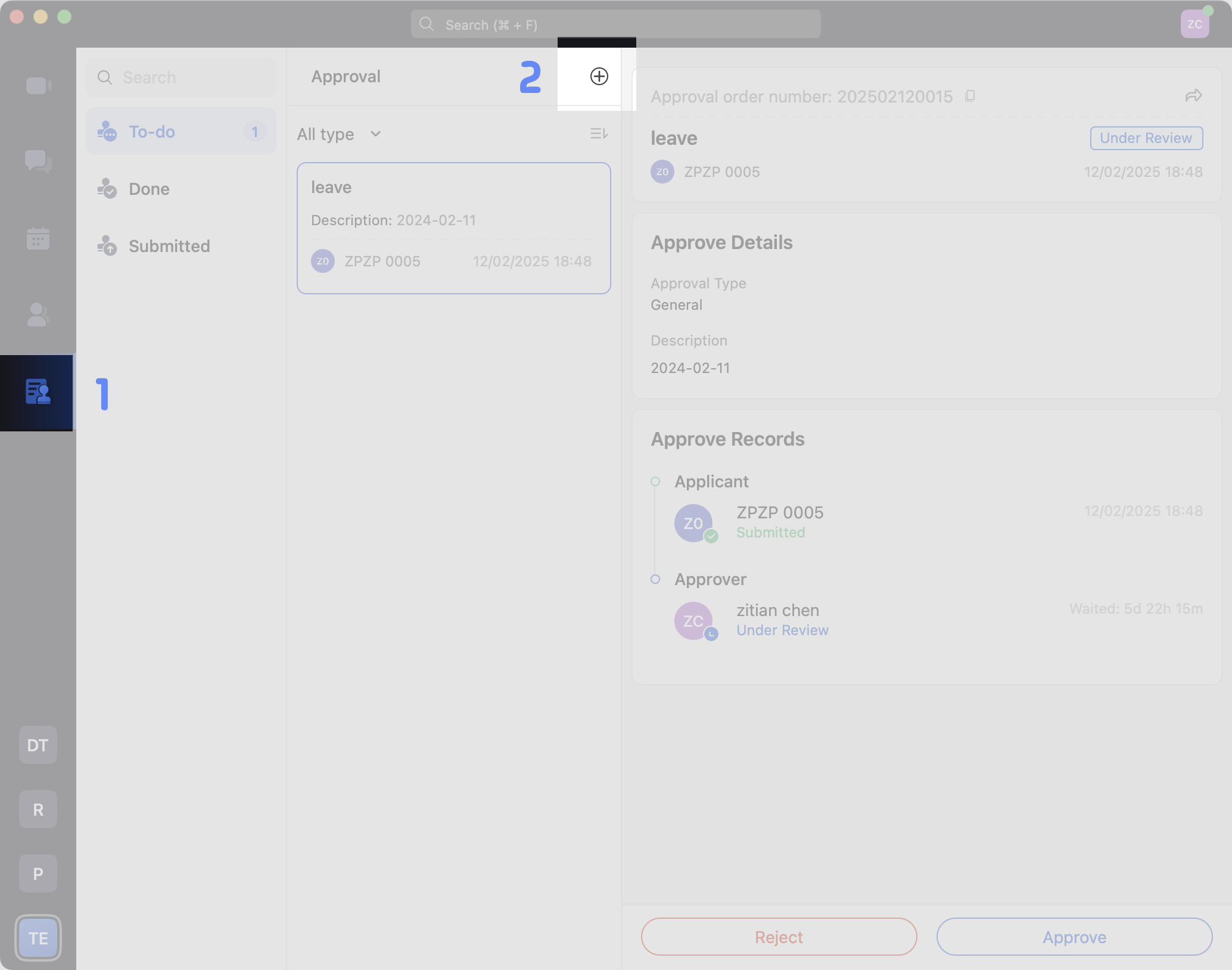
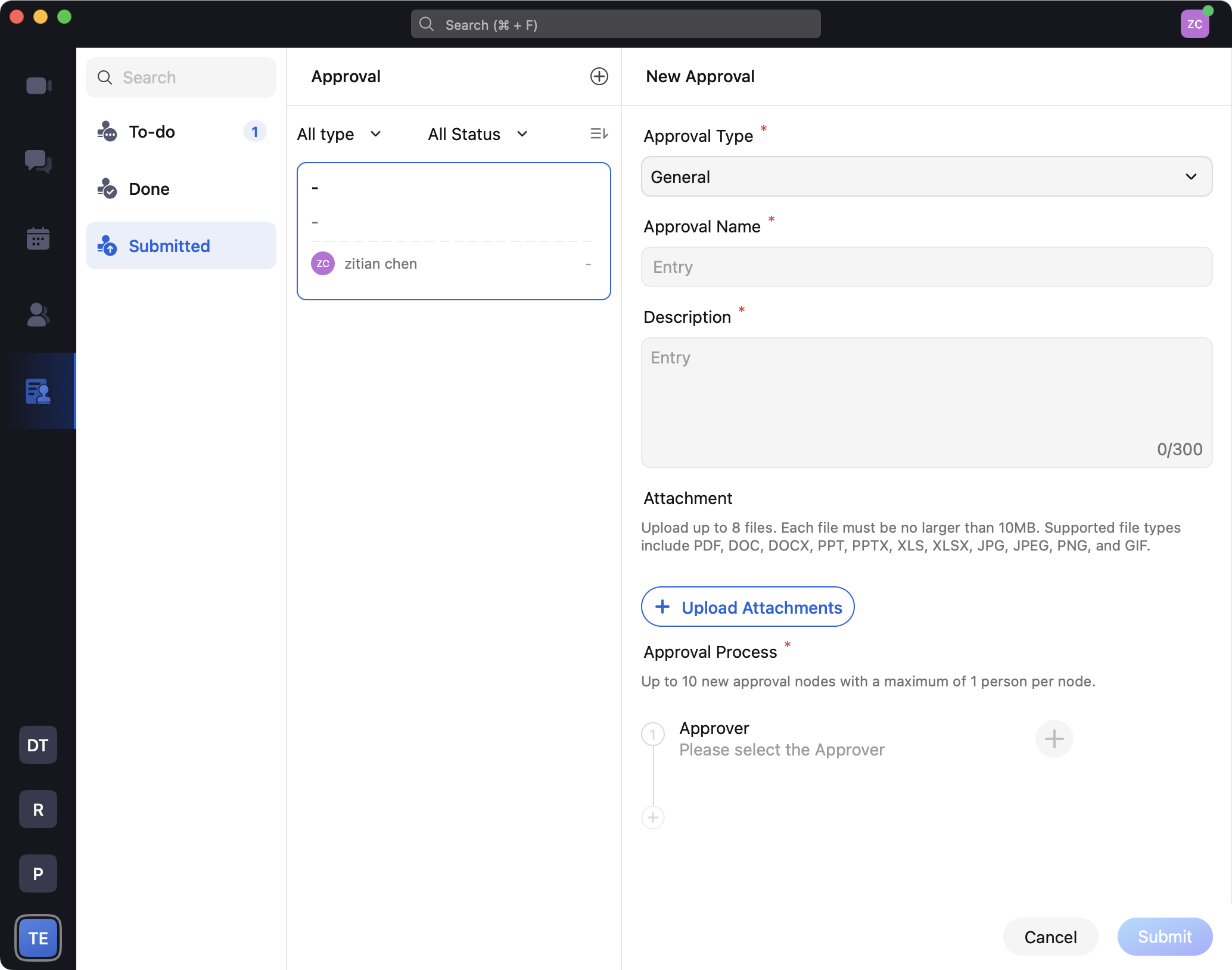
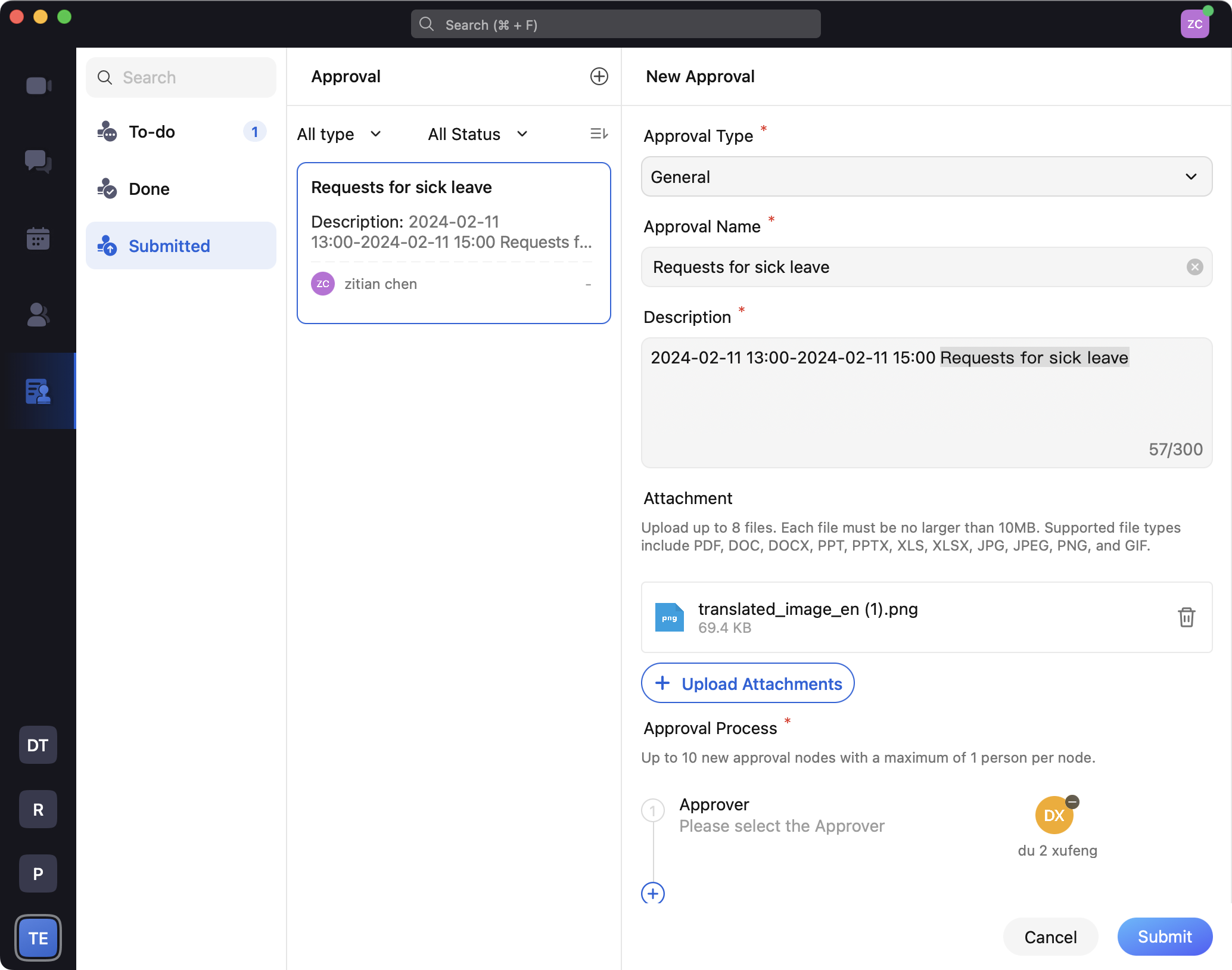 Note: Each node can only have one Approver, the number of Approvers will be expanded and Approval methods will be added.
2.Follow-up on Approval progress
After submitting an Approval, you can check and follow up the progress of the Approval at any time in the Approval Center> Submitted list. Meanwhile, the Approval notification system will also send you progress reminders.
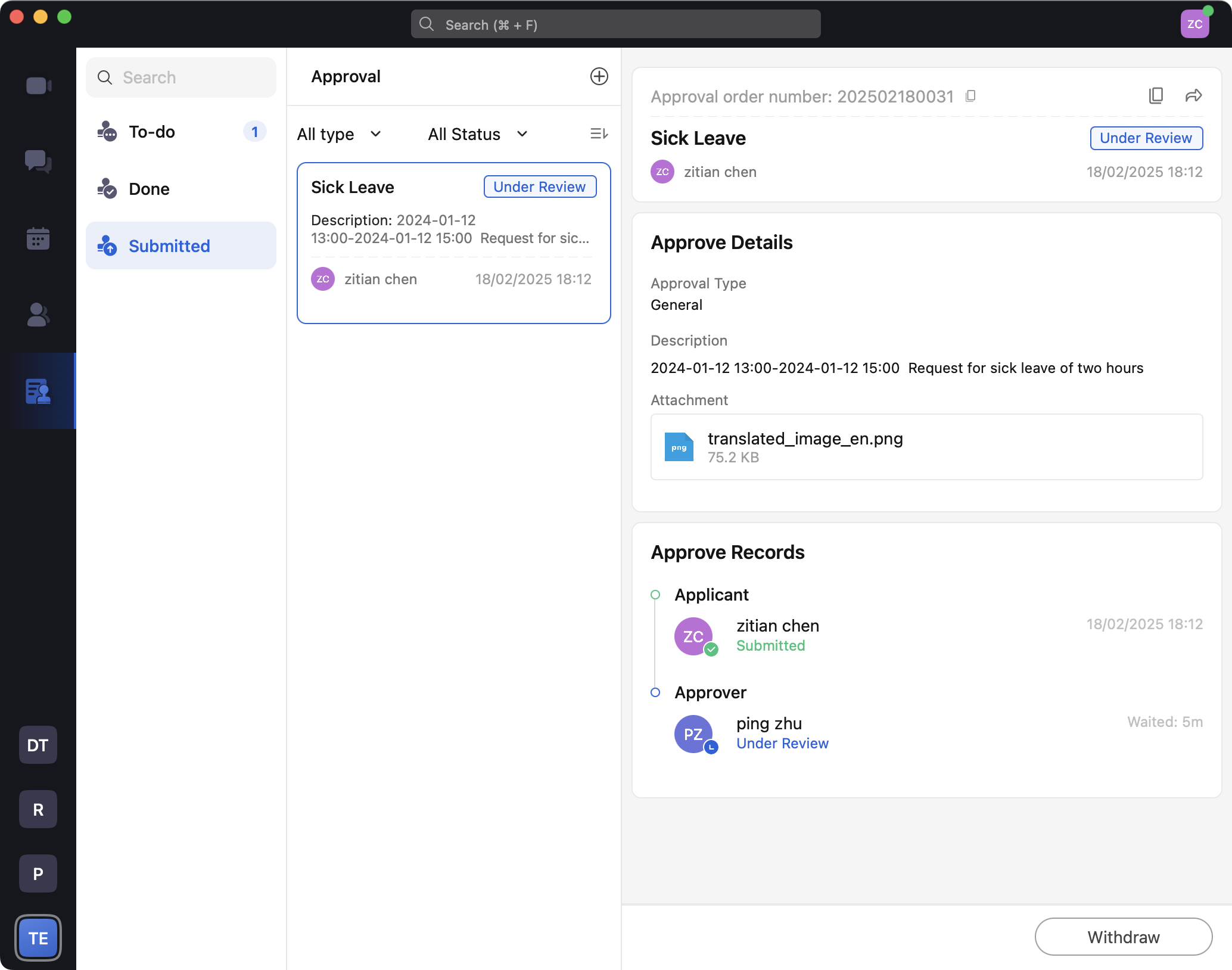 Other operations:
Withdraw: If the current Approval has been filled out incorrectly, you can withdraw that Approval before the Approval process ends.
Forward: If you need someone to know, or to urge an Approver to Approve quickly, you can click Forward to forward this Approval to someone's private chat.
Resubmit: After Withdraw, you can click Resubmit to make a copy of the original Approval and submit it again.
Other operations:
Withdraw: If the current Approval has been filled out incorrectly, you can withdraw that Approval before the Approval process ends.
Forward: If you need someone to know, or to urge an Approver to Approve quickly, you can click Forward to forward this Approval to someone's private chat.
Resubmit: After Withdraw, you can click Resubmit to make a copy of the original Approval and submit it again.
1.Understand Approval Submitter
In Approval, for members of Submit Approval, we uniformly call them submitters. Submitter can submit Approval on demand in Approval application (e.g. leave, business trip, reimbursement, etc.), and view and follow up the approval progress at any time during the Approval process.
2.Access to the approval application
Using Matrx Desktop, go to the Approval Center.
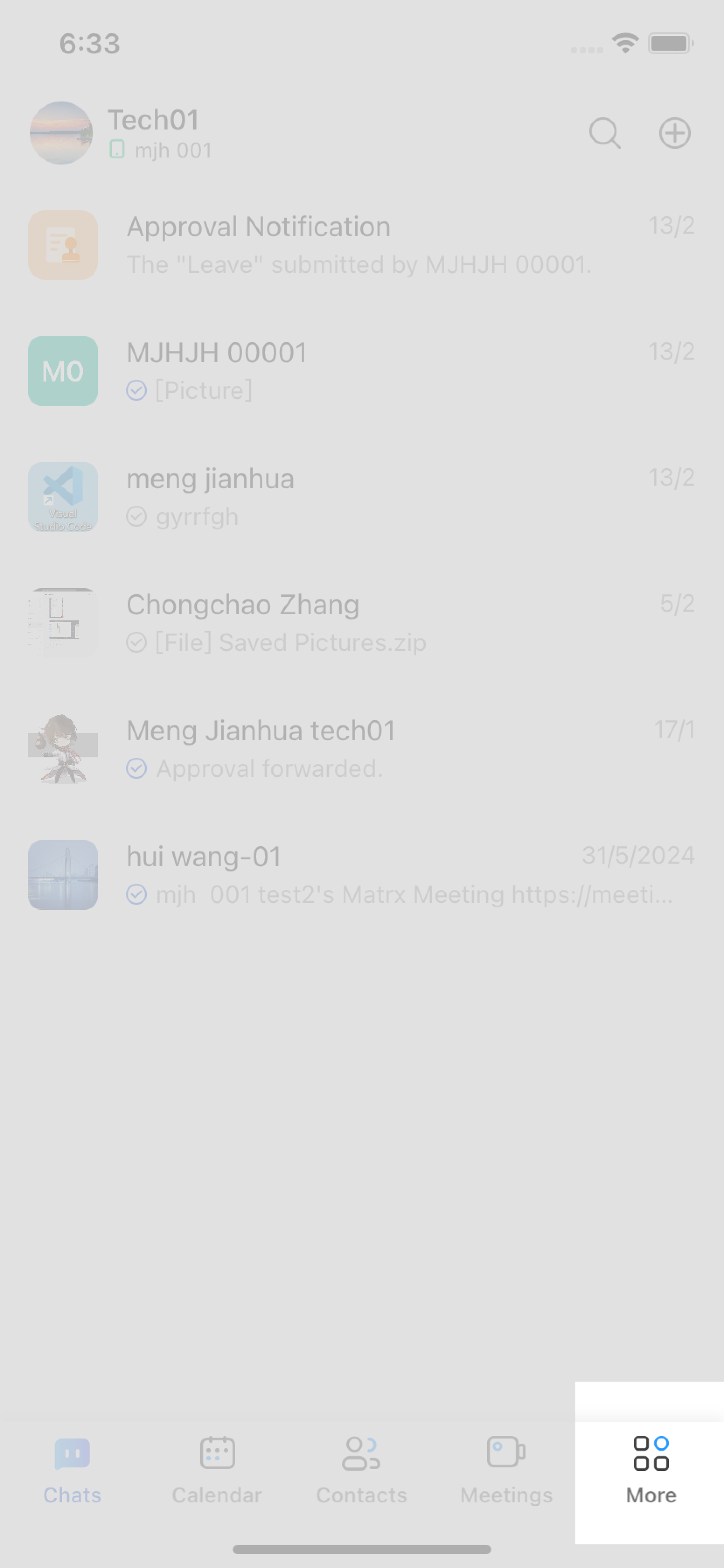
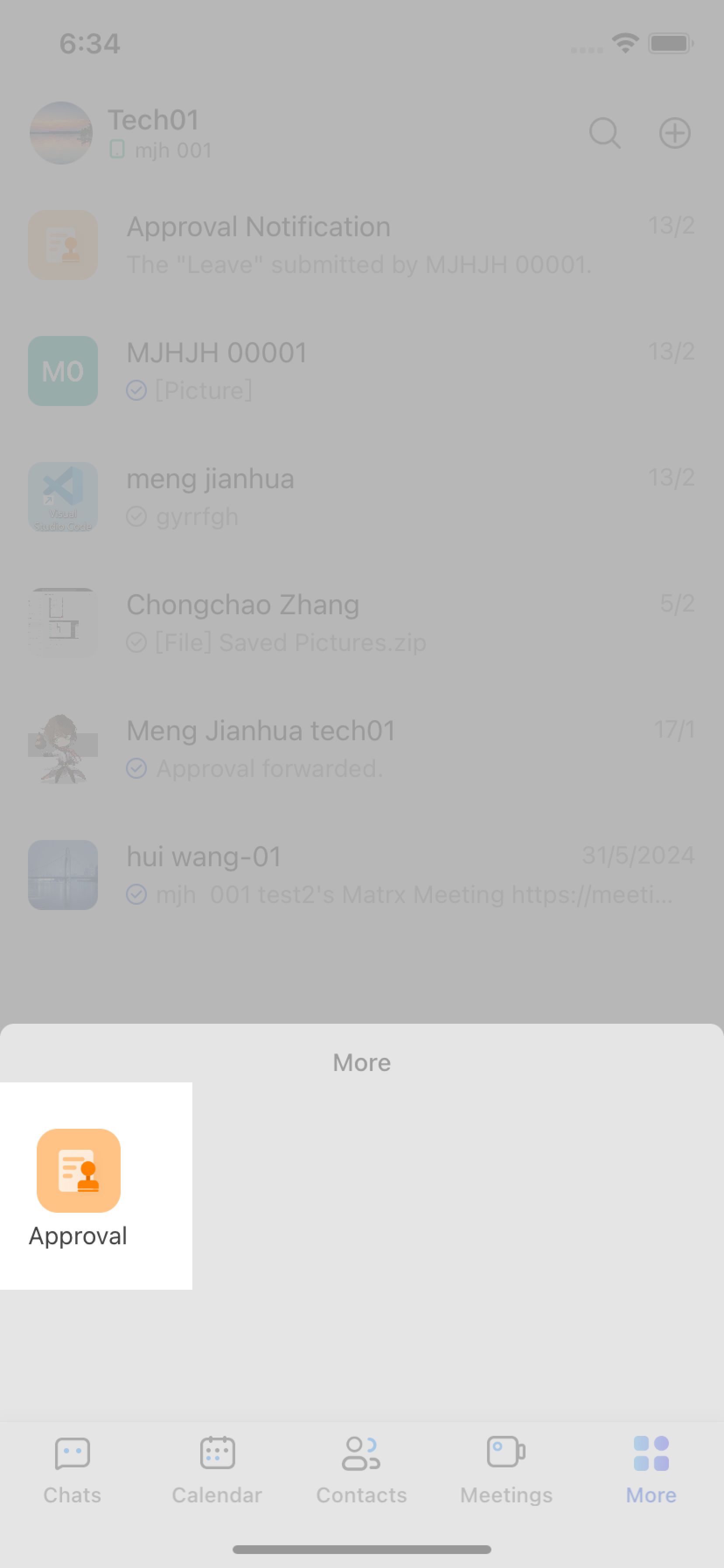
In the Approval application, you can do the following:
- New Approval: You can fill in the Approval content according to your needs.
- Approval Centre: You can view and follow up the Approval applications you have submitted, as well as forward and withdraw them.
3.Complete the Approval process in two steps
3.1 Submit an Approval
Click New Approval, fill out the form as required and click Submit.
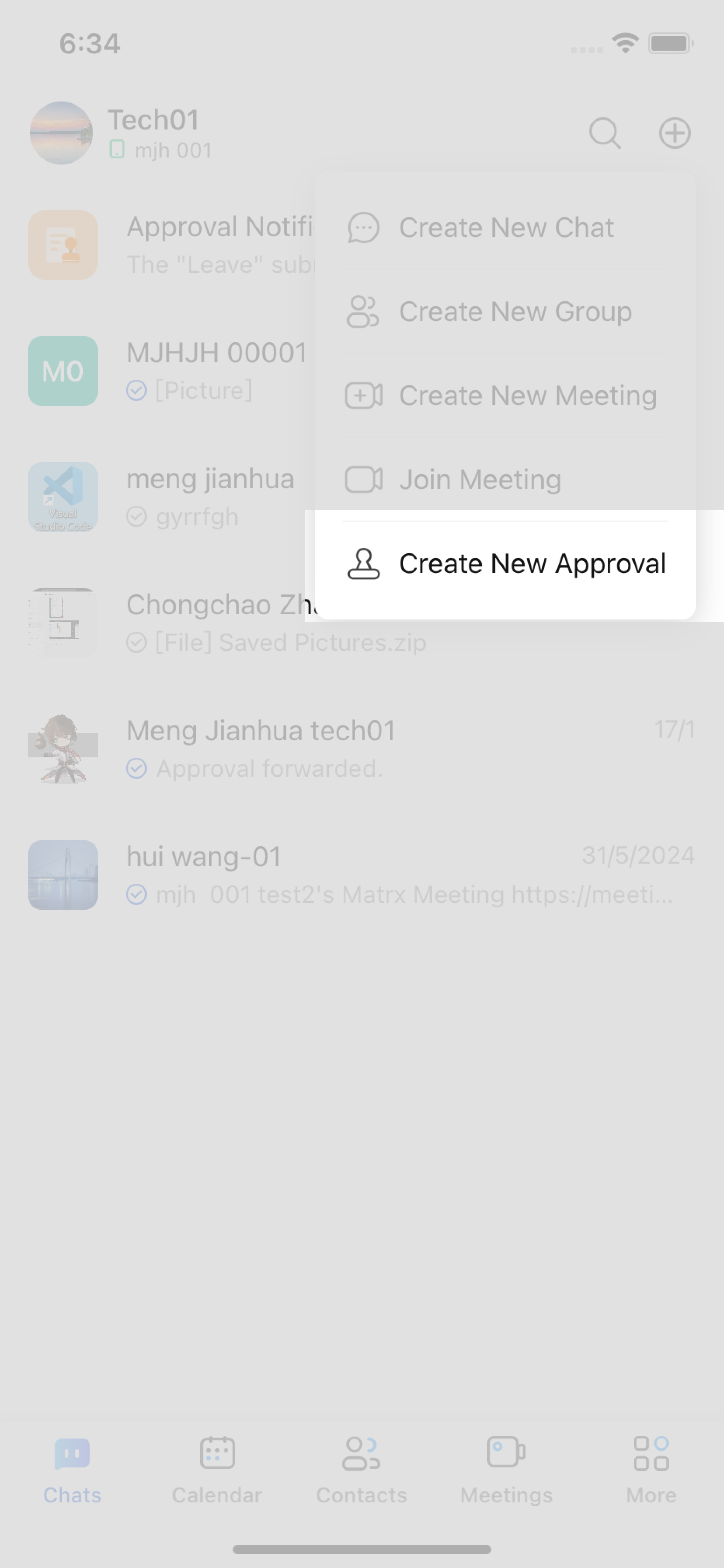
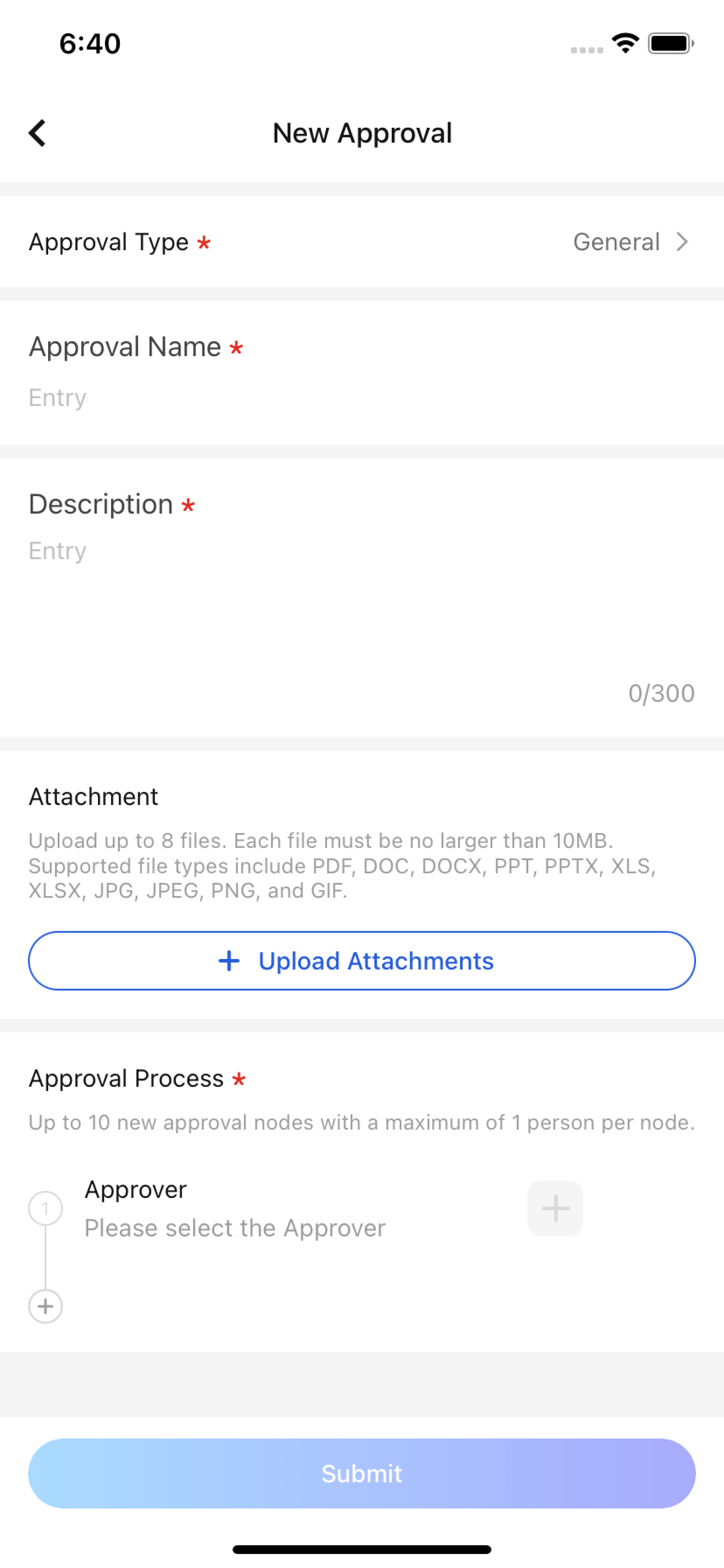
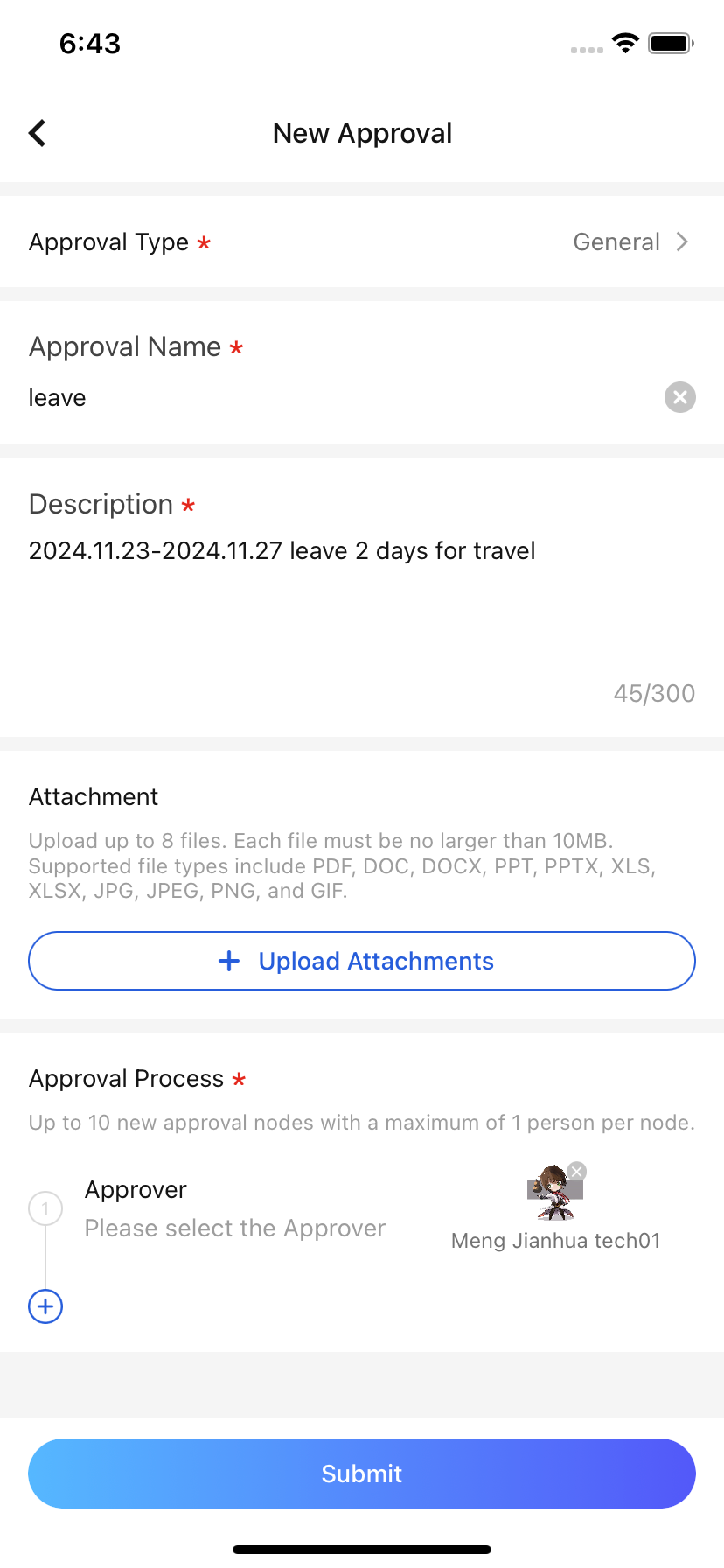 Note: Each node can only have one Approver, the number of Approvers will be expanded and Approval methods will be added.
2.Follow-up on Approval progress
After submitting an Approval, you can check and follow up the progress of the Approval at any time in the Approval Center> Submitted list. Meanwhile, the Approval notification system will also send you progress reminders.
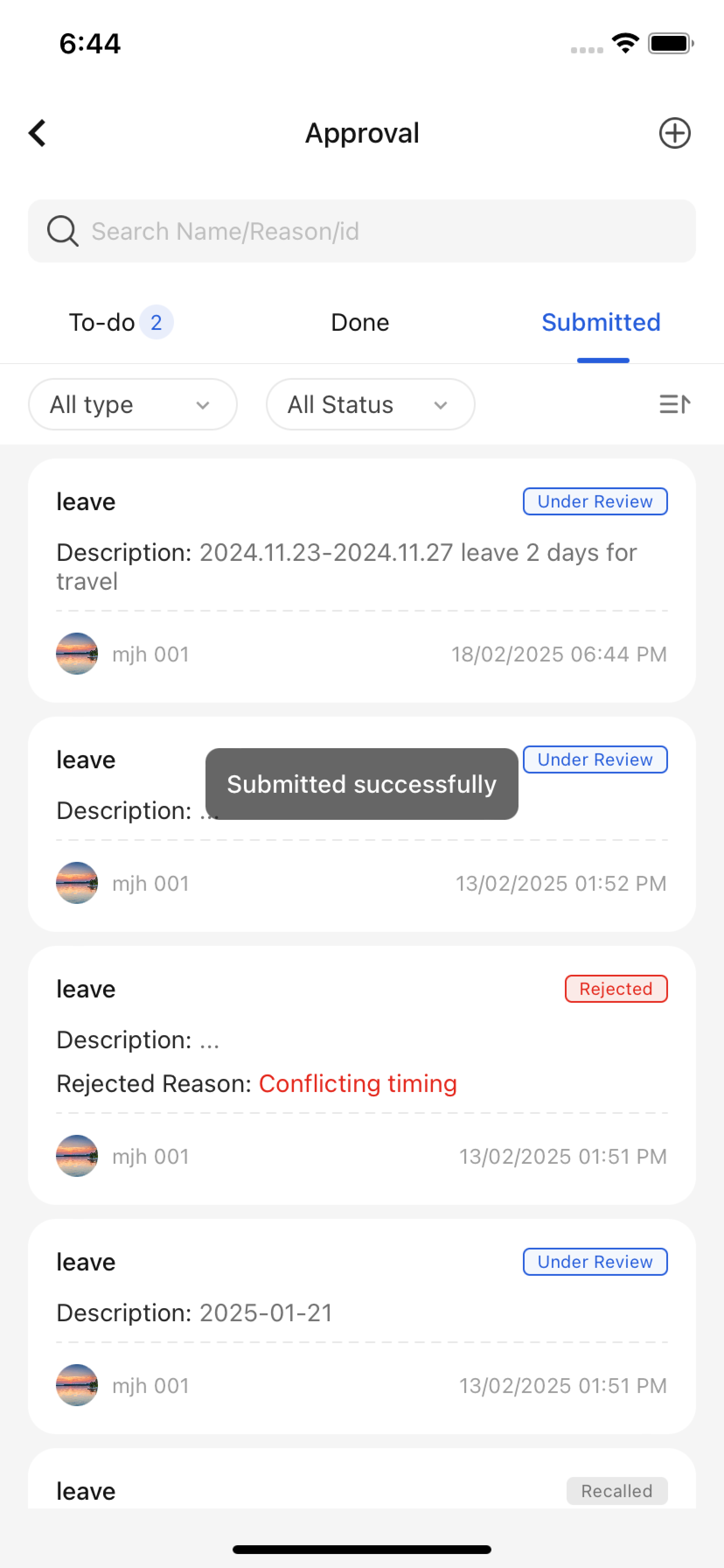
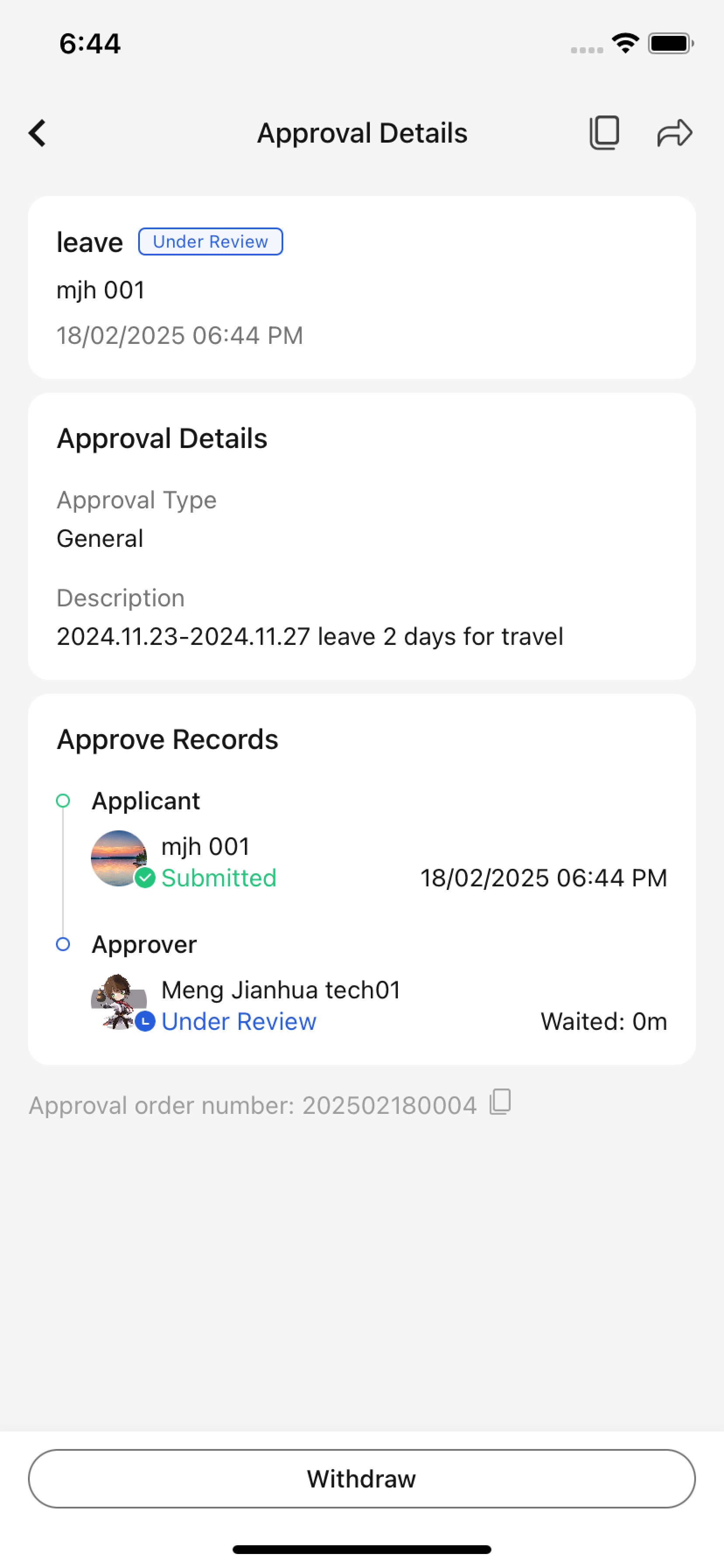 Other operations:
Withdraw: If the current Approval has been filled out incorrectly, you can withdraw that Approval before the Approval process ends.
Forward: If you need someone to know, or to urge an Approver to Approve quickly, you can click Forward to forward this Approval to someone's private chat.
Resubmit: After Withdraw, you can click Resubmit to make a copy of the original Approval and submit it again.
Other operations:
Withdraw: If the current Approval has been filled out incorrectly, you can withdraw that Approval before the Approval process ends.
Forward: If you need someone to know, or to urge an Approver to Approve quickly, you can click Forward to forward this Approval to someone's private chat.
Resubmit: After Withdraw, you can click Resubmit to make a copy of the original Approval and submit it again.